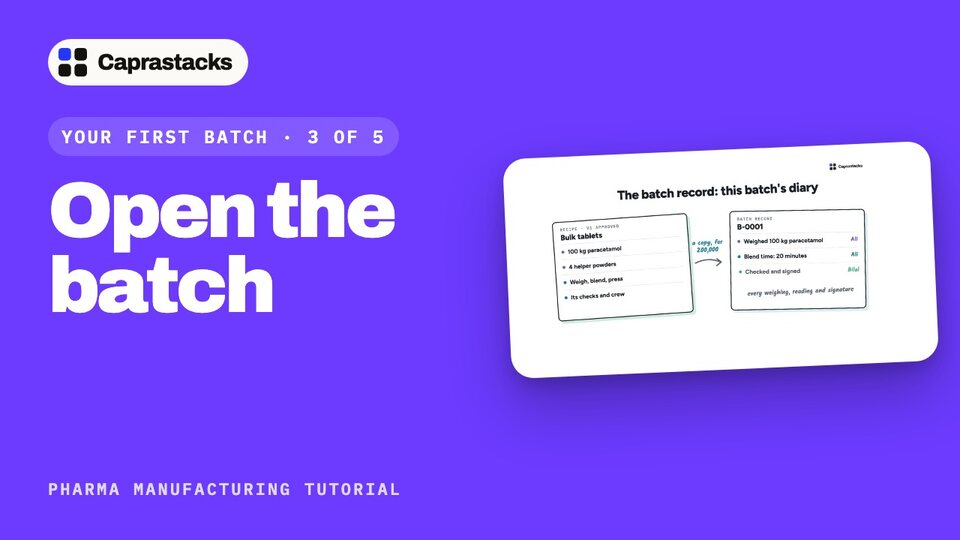
Open the batch
Open your first batch from the approved recipe. It becomes the diary of this one batch.
In 3 points
- 1 Open a batch from the approved recipe.
- 2 Check the stock, and pick the supervisor.
- 3 Sign the first task: a clean room.
Chapters
Press one to jump thereRead the words
What a batch is (0:00) In this video, we open your first batch. A batch is one production run: here, 200,000 tablets. It starts as a copy of your approved recipe, scaled to the size you choose. That copy becomes the batch record: the diary of this one batch. Every weighing, every reading and every signature goes into it.
Open a batch (0:23) Open Manufacturing, then Production, and press Open a batch. Step one: what to make. Search for the recipe: the bulk tablets, version one, approved. Press Use the standard size: 200,000 tablets. The batch takes the factory's next number: B-0001. The recipe below shows every amount for this size, and whether you have enough.
Check the stock (0:51) Press Check stock. For each material, the app picks the lot it will use: the one that expires first. Here, every material is covered. These are the lots the lab released in the last video.
A bigger batch (1:06) What if you type a bigger batch, like 250,000? The app shows what is short, and by how much. You can make a smaller batch, order more, or go ahead and write why. This size is also outside the recipe's range, so it asks for a reason too. Your company can set these rules to stop the batch instead.
Who and when (1:29) Back to 200,000. Press Choose who and when. Step three: the supervisor, the person in charge on the floor: Bilal. And the planned start: today. Under More options, you can type your own batch number, or a note. Nothing is saved until you press Open batch.
The batch page (1:50) The batch is open, and planned, with Bilal as its supervisor. Open it. At the top is its journey: planned, weigh, make, close, test, and released. Under it, your next task, with one button: Continue. Below, every task in order, and on the right, its cost so far and any problems.
The first task: a clean room (2:16) The first task: check the weighing room is clean. Ali, the operator, opens the batch, and presses Continue. The app shows one task per screen. He ticks each item as he checks it: the booth is clean and empty, the last product's containers are gone, the scale was checked today, and the room's air pressure is right. Then he presses Sign performed.
A second person checks (2:43) Then a second person checks the room too. Bilal opens the task, and presses Sign the room as checked. Now the weighing can start. In the next video, we weigh, mix and press.