Who signs what
Choose who does each step of a batch, who checks it, and who releases it.
In 3 points
- 1 Add your people.
- 2 Add the usual signing roles, or your own.
- 3 Give each role its people.
Chapters
Press one to jump thereRead the words
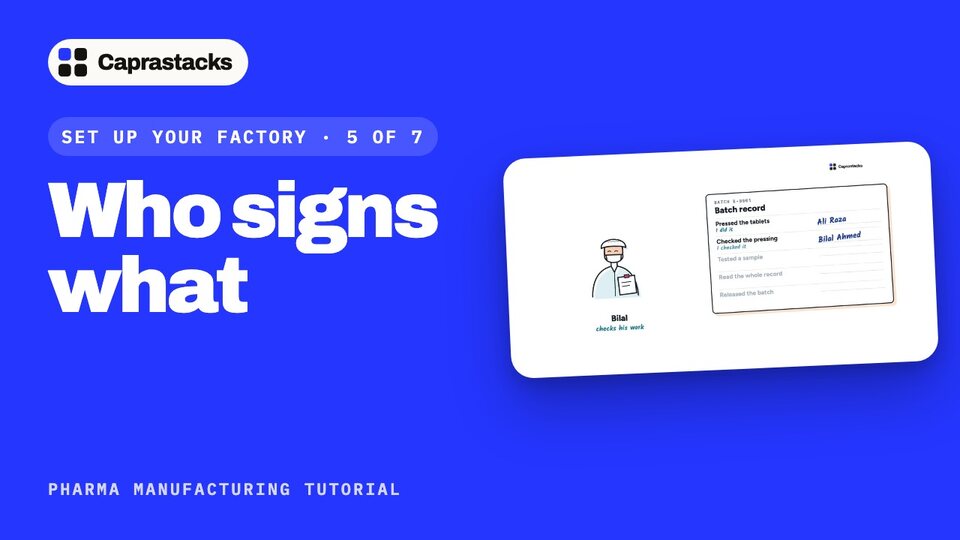
Every step is signed (0:00) In this video, we'll choose who signs what. In a medicine factory, every step of a batch is signed. Ali presses the tablets, and signs: I did it. Bilal checks his work, and signs: I checked it. Hamid tests a sample in the lab. And Usman, from quality, reads the whole record, and signs: I released it. Only then can the medicine leave the factory.
Add your people (0:27) First, your people must be in Caprastacks. Open Settings, then Staff. Here you add each person. Workers on the floor are added as factory users: they only see Manufacturing.
People who sign (0:41) Now open Manufacturing, then Settings, and press Open People who sign. These are the seven signatures a batch can need, from I did it to I released it. Tap one to see who usually gives it. Released is given by the head of quality.
The usual roles (0:59) Press Add the usual roles. Now you have the seven roles a tablet factory usually has. The ticks show what each role may sign.
Add your own role (1:10) You can add your own role too. Press New role. Type its name, like Machine operator, and what they do. Under What they may sign, tick Performed: they sign that they did the work. Press Add.
Give each role its people (1:26) A role does nothing until it has people. So, next to Machine operator, press People. Tick Ali, and press Save people. Then the release: next to QA head, press People. Tick Usman, and save.
Checking your own work (1:44) Give every other role its people the same way. One person may hold several roles. But if someone tries to check their own work, the app asks them why. That's step five, done. In the next video, we'll add the tests your lab runs.